

Managing MyDisguise Organisations
An Organisation is your workspace in MyDisguise. It groups your team, your licenses and your content in one place. This page covers joining an existing Organisation, creating a new one, and managing an Organisation’s settings.
Join an Organisation
Section titled “Join an Organisation”The first time you sign in, MyDisguise asks you to join your team before anything else.
You will see any Organisation whose email domain matches your own, as long as that Organisation has chosen to be discoverable. Depending on how it is set up, you will see one of two options:
- Join puts you straight in, with no approval needed.
- Request to join sends your request to an Owner or Admin, who approves it before you join.
If none of the Organisations listed is the one you want, you can create your own from the same screen.
You can belong to more than one Organisation, which suits anyone working across several companies or across subsidiaries of the same company. Use the Organisation switcher at the top of the Organisations page to move between them, or to join another.
Create an Organisation
Section titled “Create an Organisation”- Go to the Organisations page.
- Open the Organisation switcher at the top of the page.
- Select Create new Organisation.
- Give the Organisation a name, a location and an Organisation type.
Whoever creates an Organisation becomes its Owner. The Owner role is not offered in the role dropdown, so it cannot be assigned like Member and Admin, but Ownership can be transferred to someone else afterwards. See Roles and permissions for what each role can do.
Organisation settings
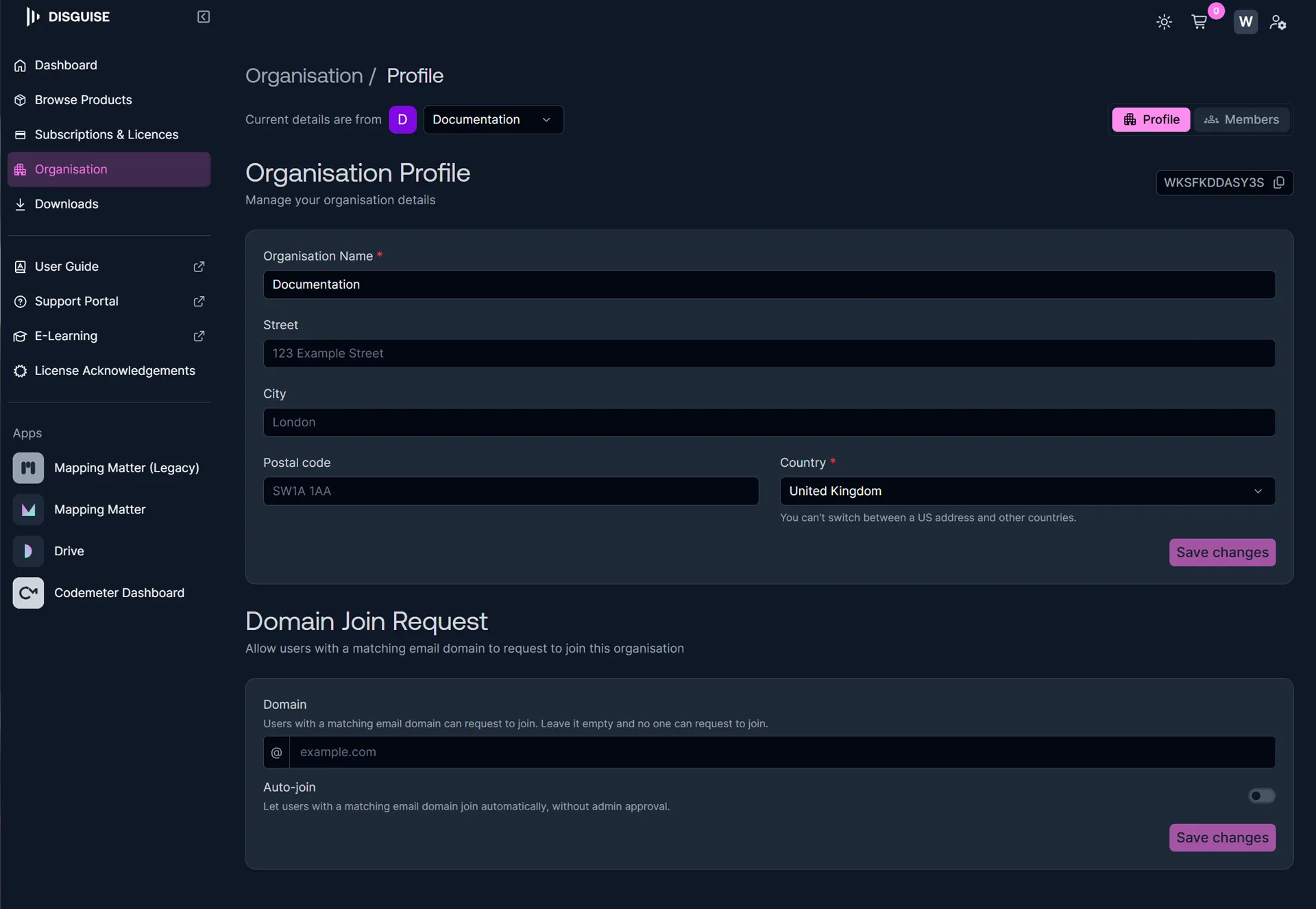
Section titled “Organisation settings”An Owner edits an Organisation’s settings from the Organisation Profile page. Admins cannot change these settings.
Address
Section titled “Address”The Organisation Profile page has your Organisation’s name and address: Street, City, Postal code and Country. Adding the address here saves you entering it later, because MyDisguise uses it to fill in your billing details at checkout.
Choose the country carefully. You cannot switch between a US address and a non-US one once it is set.
Domain join requests
Section titled “Domain join requests”This is what makes your Organisation discoverable to the people who should be in it, and it is disabled until you set it up.
Enter an email domain in the Domain field. Anyone signing up with a matching address will then find your Organisation when MyDisguise asks them to join their team. Leave the field empty and nobody can request to join, so invitations are the only way in.
Auto-join decides what happens when they find you:
- Enable Auto-join and matching people join immediately, without approval.
- Leave Auto-join disabled and each request is approved first, appearing on the Members tab alongside your pending invitations.
However they arrive, people who join this way land as a Member. An Owner or Admin grants anything beyond that afterwards, from the role dropdown on the Members tab.
Domain joining exists to funnel people into the right Organisation from the start. Without it, people who cannot find their team tend to create their own Organisation instead, and you end up with several Organisations where you wanted one.
Organisation ID
Section titled “Organisation ID”Each Organisation has a unique identifier, shown on the Organisation Profile page with a button to copy it. Customer Support may ask you for it so they can find the right Organisation quickly.
If you are coming from Disguise Cloud
Section titled “If you are coming from Disguise Cloud”Organisations work in much the same way, and yours moves across automatically. A few things have changed.
| Disguise Cloud | MyDisguise | |
|---|---|---|
| Roles | Six: Admin, Owner, Member and Billing, plus the Reviewer and Collaborator guest roles | Three: Owner, Admin and Member |
| Guest accounts | Reviewers and Collaborators could be invited as guests | Not available. Existing Reviewers and Collaborators become Members, and keep their original roles in Drive |
| Joining by email domain | Domain Capture, with the role decided by your Cloud plan | Domain Join Request, using the Domain field and the Auto-join toggle |
| Where the settings live | Profile Menu then Organisation Settings | The Organisation Profile page |
| What an Organisation contains | Drives, content and team | Subscriptions, licenses, seats and team. Mapping Matter seats carry over, and Disguise Cloud Studio subscriptions become Mapping Matter subscriptions. Drive is not part of this migration phase |
| Your personal account | Your Account, reached from your avatar, with your name, photo and light or dark mode | An Account page with your personal details, reached from your avatar and name. It belongs to your MyDisguise account, so it is the same in every Organisation |
See MyDisguise FAQs for what migrates and what you need to do, which is nothing.
Related links
Section titled “Related links”- Managing Your Team: Invite people, assign roles, and manage who has access.
- Getting Started with MyDisguise: Create an account, sign in, and set up your Account details.
- MyDisguise FAQs: Common questions about accounts, Organisations and migration.