

Update IP-VFC Firmware
We regularly release new firmware for the IP-VFC card. You can download the firmware from the IP-VFC release notes page, and on the Resources page.
The updater tool is a PowerShell script, downloaded from the Resources page alongside the firmware. Updating stops d3Service and d3Buddy, and takes around seven minutes, plus two minutes for the cards to reboot.
Check IP-VFC firmware
Section titled “Check IP-VFC firmware”- Download the IP-VFC firmware updater download tool and latest firmware.
- Right-click the
IPVFCUpdaterGUIPowerShell script and click Run with PowerShell. - Click the Kill d3Service, d3Buddy button.
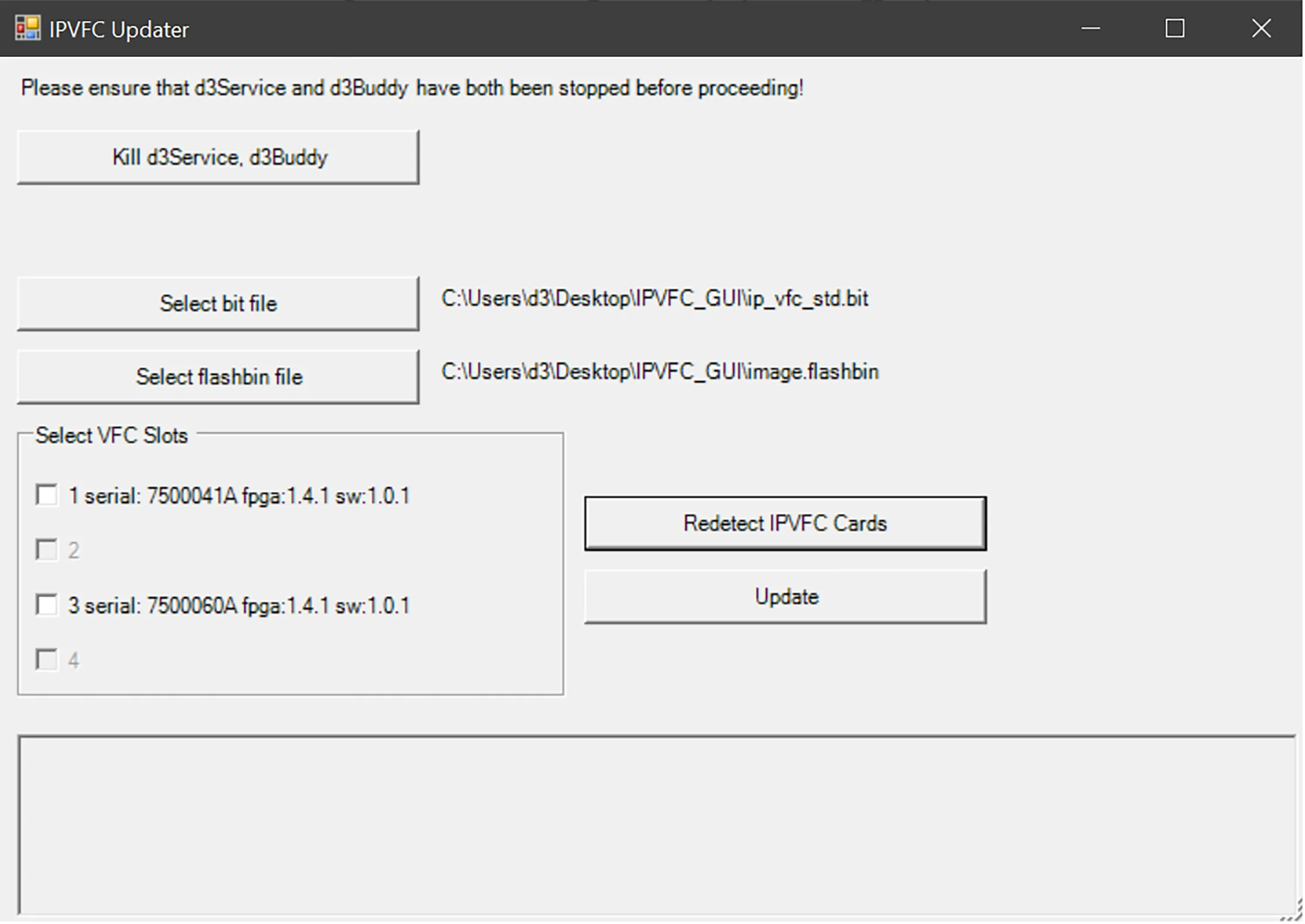
- Click Redetect IP-VFC Cards. Detected IP-VFC cards then appear in the VFC Slots list detailing the serial number as well as the versions of software that the card is running.
- If no cards appear in the list but there are cards plugged into the system, wait for at least two minutes and click Redetect IP-VFC Cards to populate the list.
Update IP-VFC firmware
Section titled “Update IP-VFC firmware”- Perform all of the steps in the Check IP-VFC Firmware in the above section.
- Click Select bit file and select the .bit file from the version you want to install.
- Click Select flashbin file and select the
.flashbinfile from the version you want to install. - Check all the boxes next to the cards that you would like to update.
- Click the Update button.
- Separate PowerShell windows will then appear with the progress of each cards update.
- After approximately 7 minutes the cards will have finished updating and will automatically reboot.
- Click Redetect IP-VFC Cards and check that all the cards that were updated now display in the list with the correct version (Note: the reboot process takes approximately 2 minutes).
The updater creates a log for each card inside the updater’s folder. If you have any issues with the updater, such as an update that does not complete, please refer to the logs. You will be asked for the logs if you need to contact support@disguise.one.