

Object List
The Object List shows every object in the stage in one window, where you can search or filter to find the one you need. Use it to check an object’s name, type and render layer, see whether it is on the active stage, and select or open any object without hunting through the 3D view.
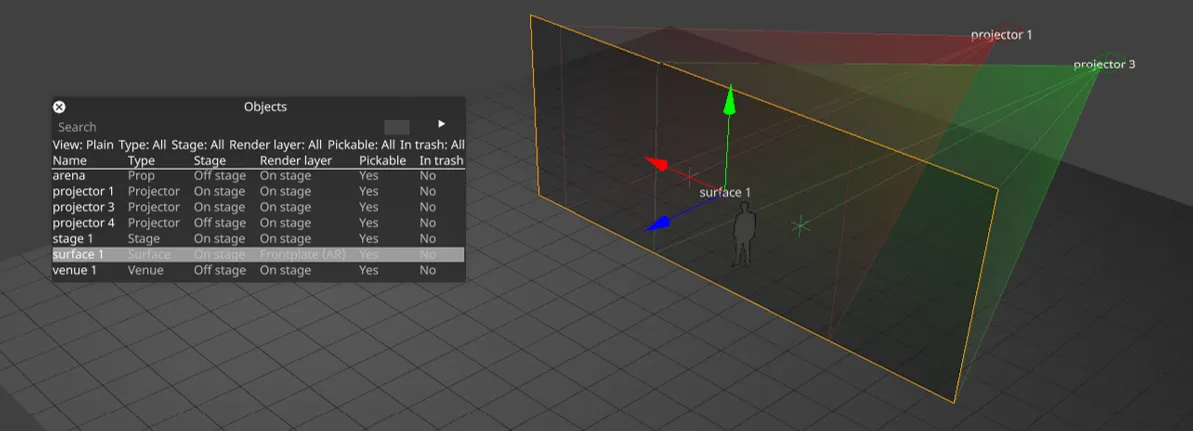
Opening the Object List
Section titled “Opening the Object List”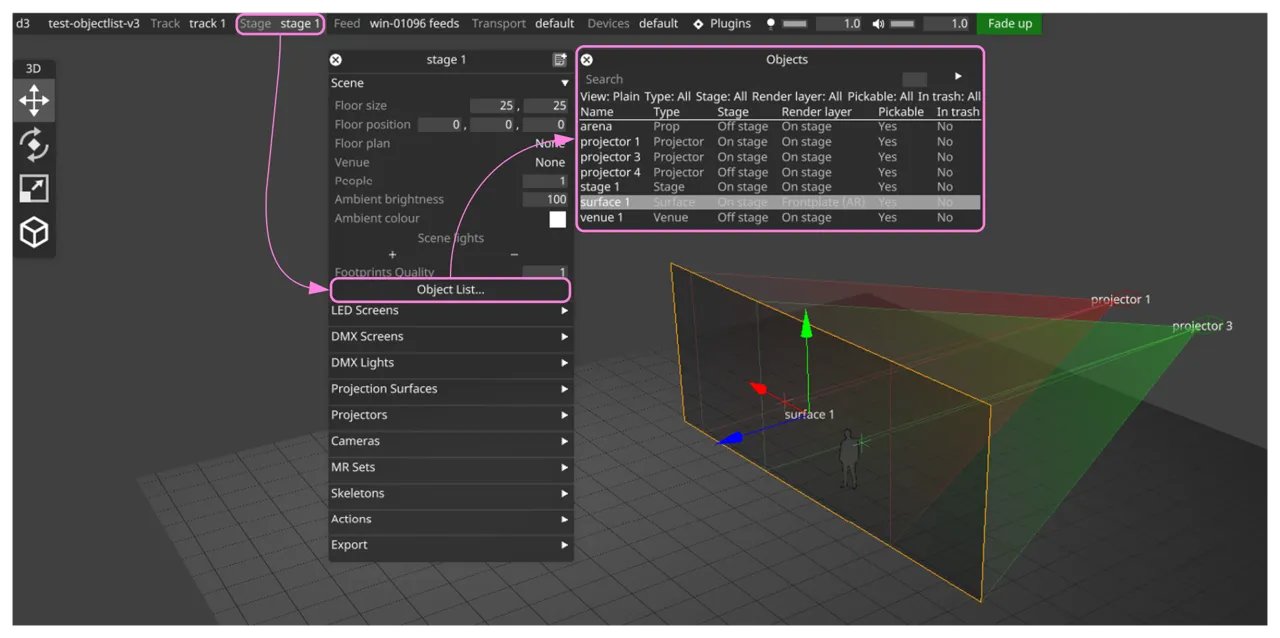
- Open the Stage editor.
- Click Object List… in the Scene section.
- If the Object List is already open, clicking the button again brings it to the front.
The list shows every object in the stage, including objects in the trash.
Plain and Tree views
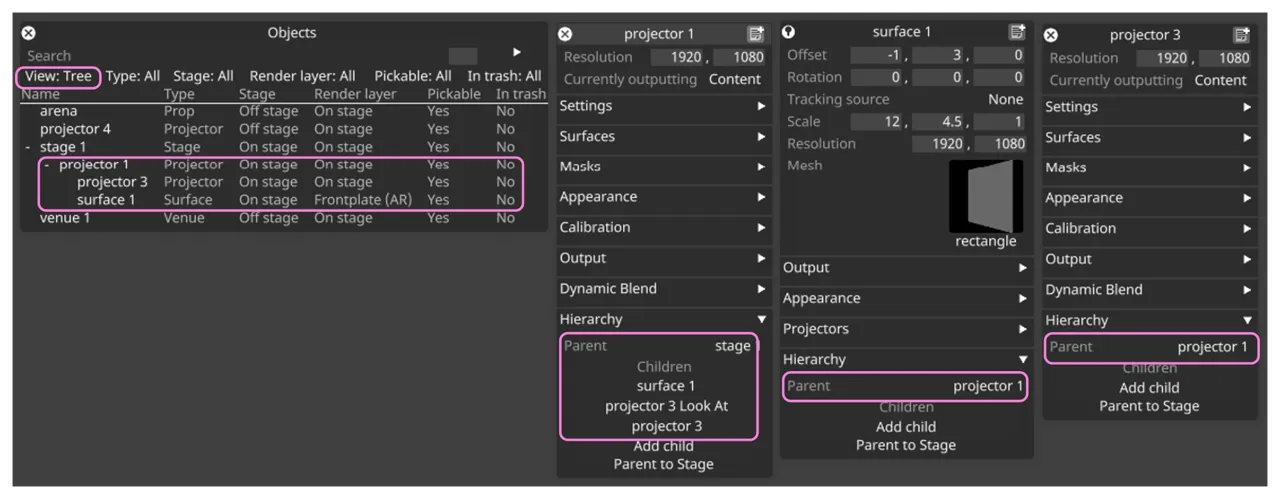
Section titled “Plain and Tree views”The View button switches between two layouts:
| Plain | Tree |
|---|---|
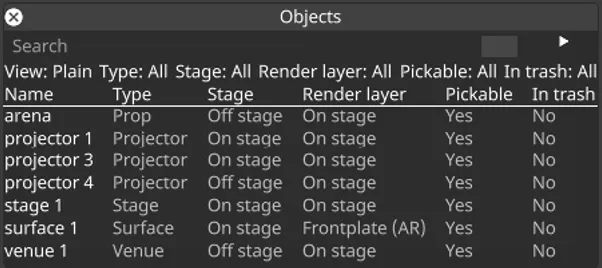 |  |
- Plain: a flat list of all objects.
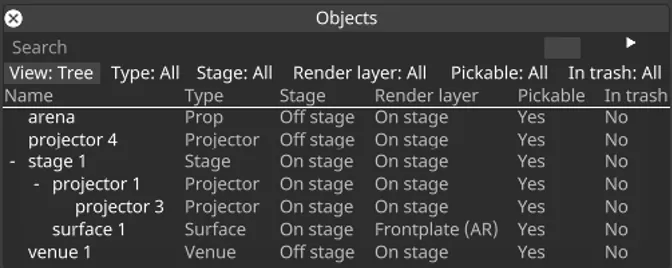
- Tree: objects shown in their parent/child hierarchy, with expand/collapse toggles on parents.
In Tree view, click the +/- toggle next to a parent to show or hide its children. When a search or filter is active, matching objects are shown in their place in the hierarchy, and their parent objects are kept visible for context even if they do not match the filter themselves.
Columns
Section titled “Columns”Each object is shown as a row with the following columns:
- Name - the object’s name.
- Type - the object’s type (for example Prop, Camera, Projector).
- Stage - whether the object is currently on the active stage (On stage) or not (Off stage).
- Render layer - the render layer the object is assigned to.
- Pickable - whether the object can be selected by clicking it in the stage (Yes) or not (No).
- In trash - whether the object is in the trash (Yes) or not (No).
In Plain view, click a column header to sort by that column.
Pickable column
Section titled “Pickable column”The Pickable column shows which objects ignore clicks in the visualiser. Unpickable objects can still be selected and opened from the Object List. See Making an object pickable or unpickable for details.
Searching
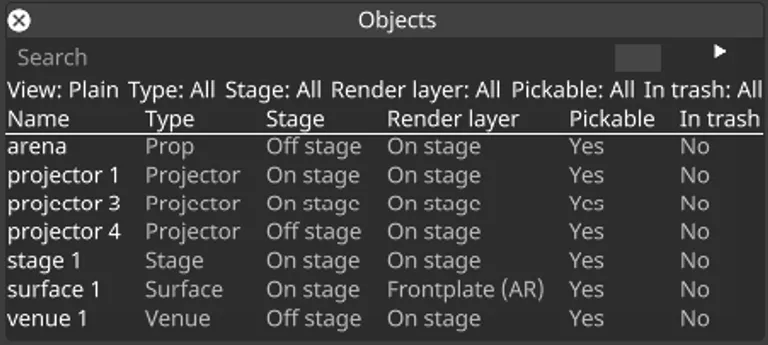
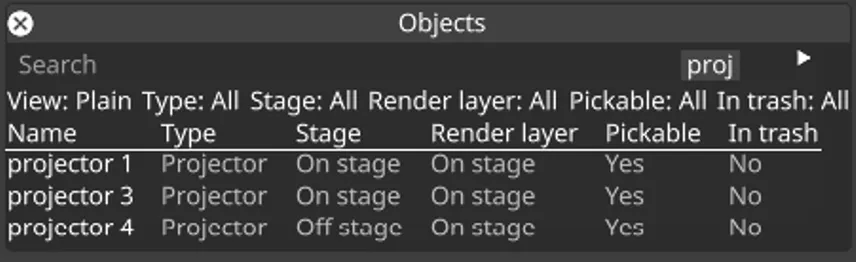
Section titled “Searching”Type in the Search box at the top to find objects by name. There are two matching methods, selected with the options button next to the box:
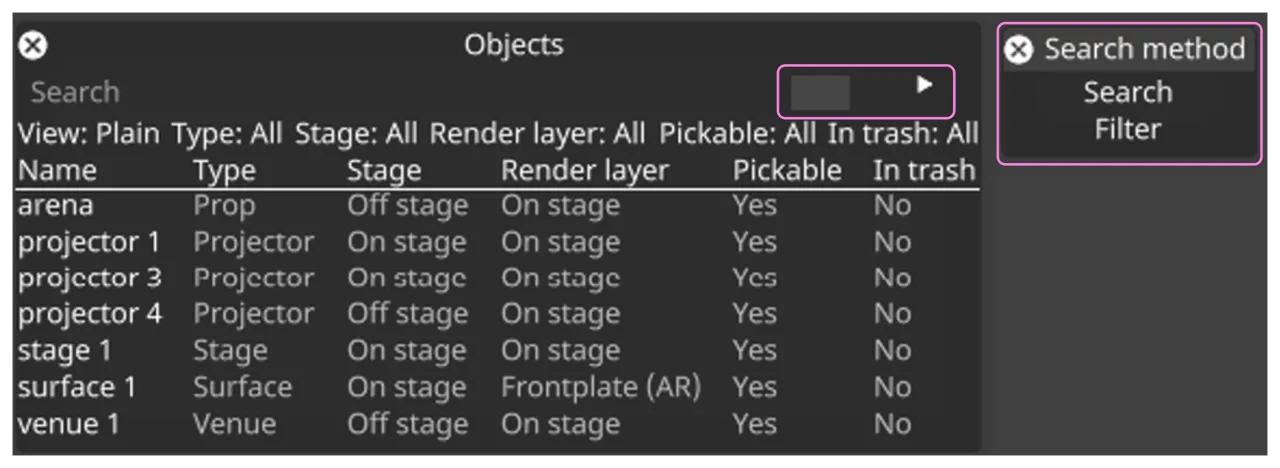
- Search - fuzzy relevance matching, with the closest matches listed first.
- Filter - matches names that contain exactly what you type, listed alphabetically.
| Before | After |
|---|---|
 |  |
Filtering
Section titled “Filtering”| Before | After |
|---|---|
| 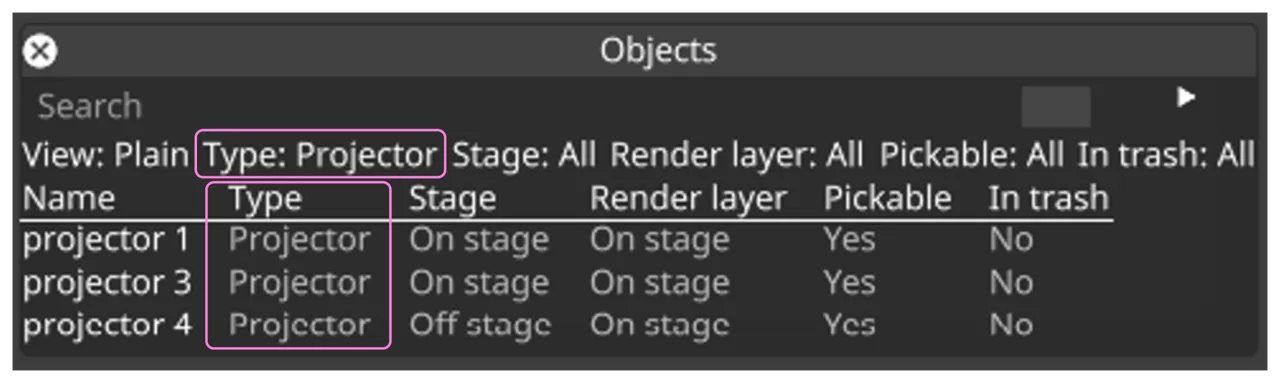 |
The filter bar provides a button for each filterable column. Each opens a short menu:
- Type - show only objects of a chosen type.
- Stage - show All, only On stage, or only Off stage objects.
- Render layer - show only objects on a chosen render layer.
- Pickable - show All, only pickable (Yes), or only unpickable (No) objects.
- In trash - show All, only trashed (Yes), or only non-trashed (No) objects.
Selecting and opening objects
Section titled “Selecting and opening objects”- Left-click a row to select that object in the stage. This works even for objects that are locked against selection in the 3D view.
- With the Object List focused, press
Fto zoom the 3D view to the selected object.
- With the Object List focused, press
- Right-click a row to open that object’s editor, or bring it to the front if it is already open.