

Offline License Update and Activation
Disguise licenses can also be updated and activated without an internet connection. This applies to any machines, but is typically relevant for RenderStream subscriptions where the RX server that should receive the license is airgapped without internet access.
Prerequisites
Section titled “Prerequisites”If you are updating a machine without an internet connection, you will need a second machine that can access the internet.
License files must be transferred between the receiving server and a separate machine with internet access for offline license updates. This transfer can happen using a LAN or physical drive, such as a USB drive or an external HDD/SSD.
Wibu files to be exchanged
Section titled “Wibu files to be exchanged”The request and the receipt have the same extension, .WibuCmRaC
| File | Extension | Details |
|---|---|---|
| Request | .WibuCmRaC | Must be uploaded to generate the license update file. |
| License update | .WibuCmRaU | Must be downloaded to activate the license. |
| Receipt | .WibuCmRaC | Must be uploaded as proof of an activated license. |
Update and activate a license offline
Section titled “Update and activate a license offline”Follow the sequence of steps below to update and/or activate a license offline. As you’ll be switching between two machines, we’ve indicated which you will need for each step.
1. Create a license update request
Section titled “1. Create a license update request”Offline server
-
Open CodeMeter Control Center.
-
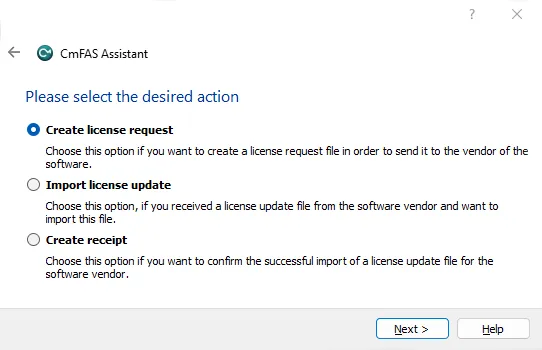
Click License Update and click Next.
-
Select Create license request and click Next.
-
Select Extend existing license.
-
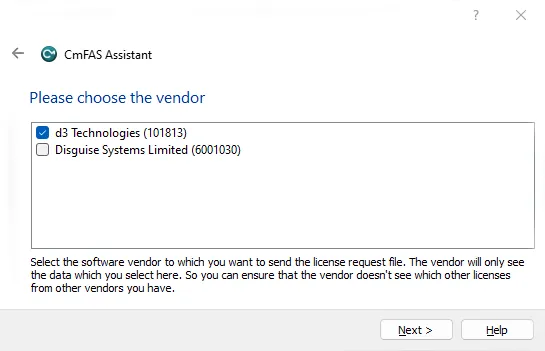
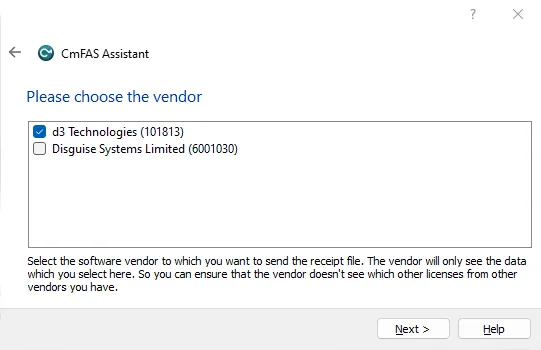
Select the vendor for the license you are updating. The dialogue is headed Please choose the vendor and lists each vendor with its FirmCode in brackets. You can only create one license request at a time.
- d3 Technologies (
101813) for current RenderStream licenses - Disguise Systems Limited (
6001030) for Designer Pro, X Series or any future Disguise licenses
- d3 Technologies (
-
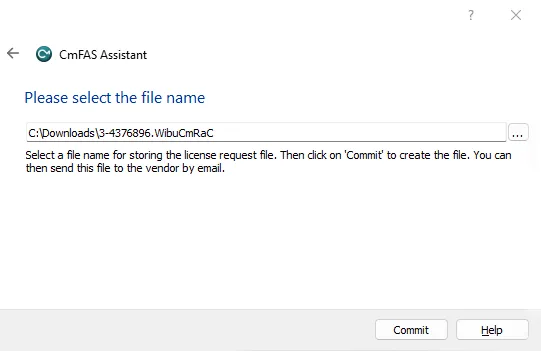
Click Next, select a memorable filename for the request, then click Commit.
Give it a name you will recognise, such as the machine hostname. CodeMeter Control Center defaults to the license container’s serial number, which is hard to tell apart when you are activating several servers. The license update file you download in the next section takes the same name, so naming the request file well carries through to the other files.
-
Copy this
.WibuCmRaC
2. Create a license update file
Section titled “2. Create a license update file”Online machine
-
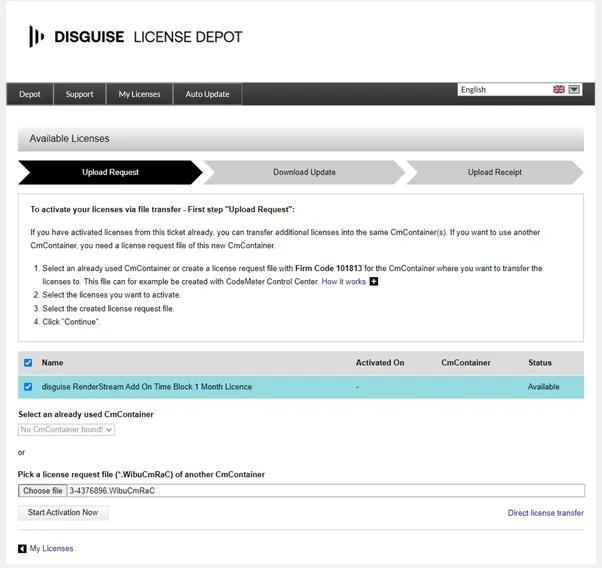
Open the URL for the file-based transfer in a browser, https://lc.codemeter.com/64700/depot/autoUpdate.php.
-
Click File-based license transfer in the bottom right of the window.
-
Select the
.WibuCmRaC -
Click Start Activation Now.
-
This will take a short time to process.
-
On the next screen, click Download License Update. This downloads the license update file ending with a
.WibuCmRaU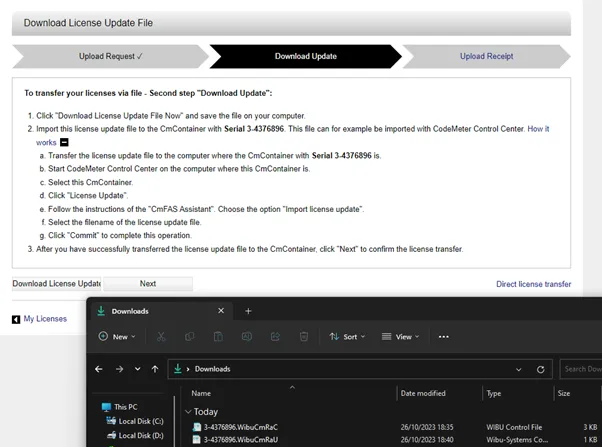
-
Keep the browser window open until the download has completed.
-
Copy the
.WibuCmRaU
3. Import the license update to create a receipt
Section titled “3. Import the license update to create a receipt”Offline server
-
Reopen the CodeMeter Control Center.
-
Click on License Update.
-
Click Next.
-
Select Import license update and click Next.
-
Select the
.WibuCmRaU -
Click Commit to activate the license on the offline server.
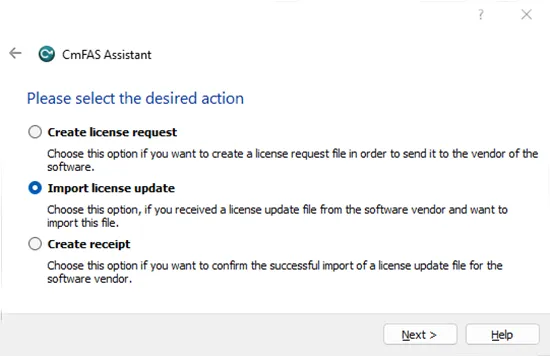
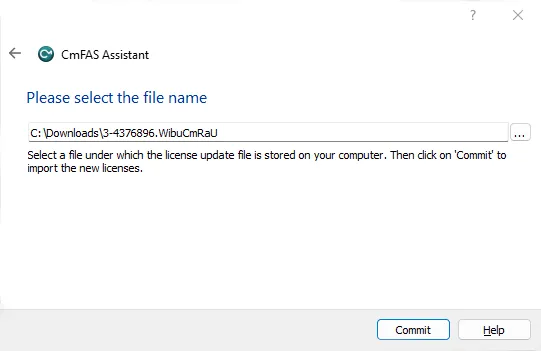
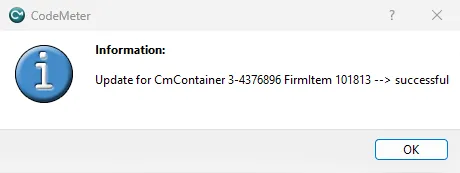
-
Still in CodeMeter Control Center, click License Update and Next.
-
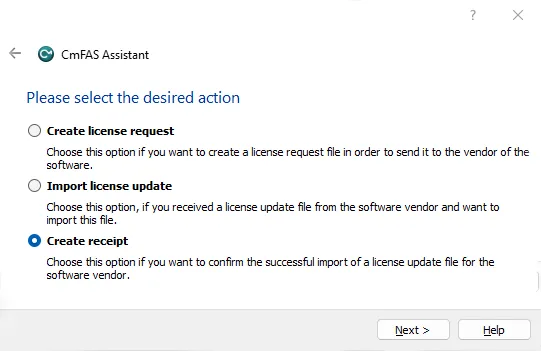
Select Create receipt and click Next.
-
Select the same FirmCode as earlier and click Next.
-
Select a file to save the receipt to: The default process overwrites the earlier
.WibuCmRaC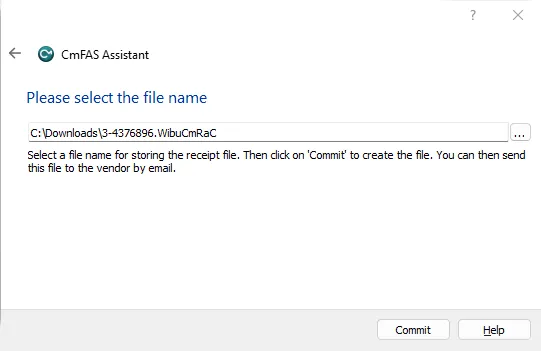
-
Click Commit.
-
Copy this new
.WibuCmRaC
4. Apply the license receipt to complete the activation
Section titled “4. Apply the license receipt to complete the activation”Online machine
-
Return to your browser and ensure you have the option to Download License Update File in WebDepot.
-
Click Next.
-
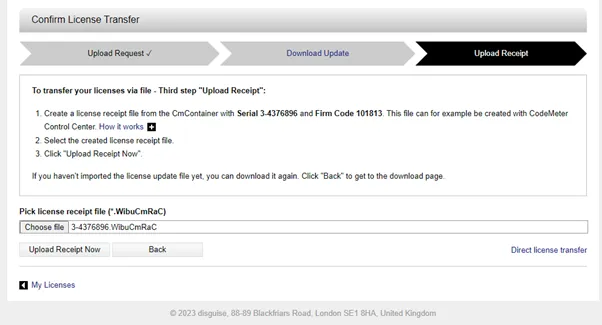
Select the
.WibuCmRaC -
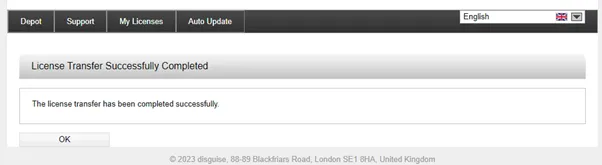
Click Upload Receipt Now.
-
Click OK on the next screen.
-
Check that the license now has a red background in WebDepot.
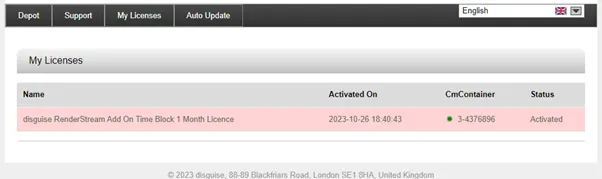
The red background confirms that WebDepot and the CodeMeter License Central database have received the update. Your Designer license is now active on the offline server.
Related links
Section titled “Related links”- Designer Licenses and Activation Process: The standard online activation process for Designer Pro and X Series licenses.
- Transfer a Designer Pro License: Move a license between CodeMeter containers.
- Legacy Licenses: Licensing for Designer versions from before the April 2025 Starter and Pro scheme.