

Looks
A Look is a self-contained, single-section Track of sequenced Layers, built once and reused. You play a Look by placing a Look Layer on a Track, and any number of Look Layers can play the same Look. Exposing selected Layer fields through the Look’s Personality lets each Look Layer set and keyframe its own values for those fields, so one arrangement can play many times with different values. Editing the Look updates every Look Layer that plays it.
Creating a Look
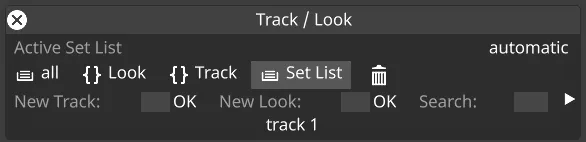
Section titled “Creating a Look”To create a Look, open the Track manager as you would to create a Track, type a name into the New Look field and click OK.
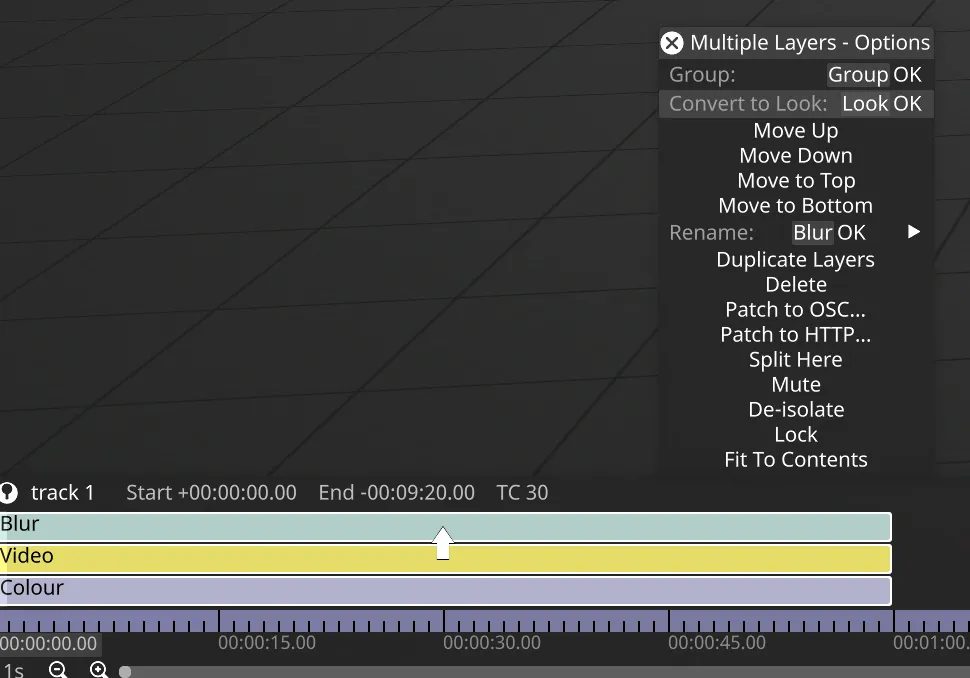
You can also turn Layers you’ve already sequenced into a Look. Select the Layers on a Track, right-click the selection, type a name into the Convert to Look field and click OK. Designer moves the Layers into a new Look and puts a Look Layer playing it in their place. Alt+L does the same, using the default name Look.
Designing a Look
Section titled “Designing a Look”A Look has its own timeline, where you sequence Layers as you would on a Track. Some Track features aren’t available in Looks (see Limitations).
Layer fields can be exposed to the Look’s Personality directly via the layer editor by clicking on the  icon.
icon.
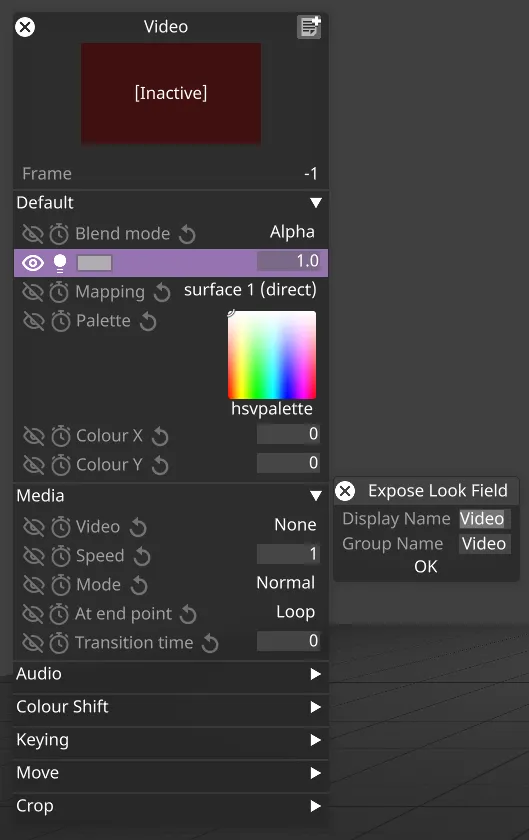
A naming widget appears, where you can customise the display name and the group name. They default to the field name and the layer name. Click OK or press Enter to confirm. Alternatively, shift-click the icon to skip the naming widget and expose the field directly.
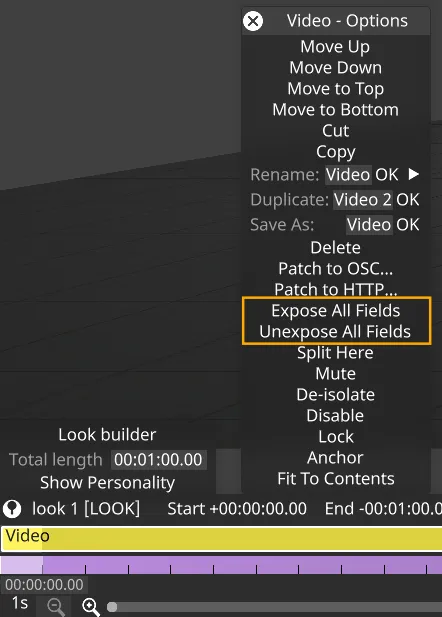
You can also expose or unexpose all fields on a layer at once from the right-click menu.
Exposed fields are highlighted in purple in layer editors to show that the Look controls them, as distinct from the green highlight on fields driven by an expression or Sockpuppet. Exposed fields also appear in the Look Builder, at the bottom left above the timeline, where you can set test values to preview the Look.
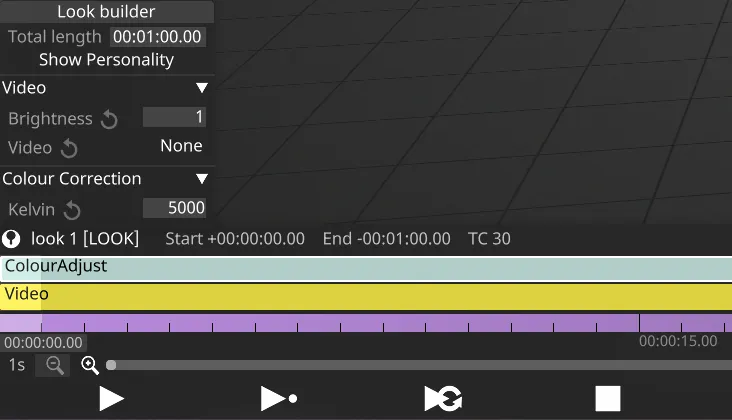
Fields on layers inside a Look can still have expressions or be patched to Sockpuppet. The precedence order is:
- Look
- Expression
- Sockpuppet
- Keyframes
If a field has an expression or is patched to Sockpuppet, exposing it to a Look gives the Look full control over that field.
Multi-layer exposure
Section titled “Multi-layer exposure”The same icon is available on the multi-layer editor (more than one Look Layer selected) and on the group-layer editor (a Group of Look Layers opened). Clicking the icon there exposes or unexposes the field across every layer in the selection or group in one action.
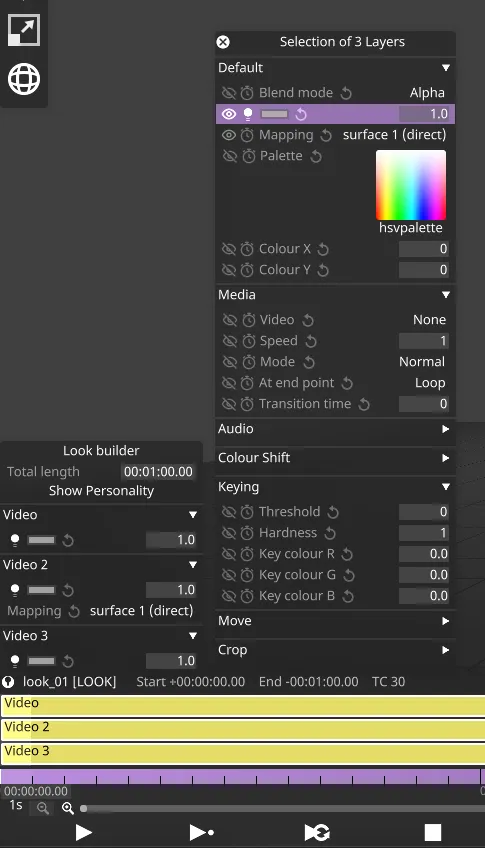
The icon reflects the aggregate state:
- All layers exposed: open eye, white. Clicking unexposes the field on every layer.
- No layers exposed: crossed-out eye, grey. Clicking exposes the field on every layer.
- Mixed (some exposed, some not): open eye, grey. Clicking exposes the field on the remaining layers, so the whole selection is exposed.
Every Layer you expose the field on gets its own entry in the Look’s Personality.
Ordering. Personality entries are added in the same order the layers appear in the editor:
- Multi-select: entries appear in layer stack order, top of the layer panel first.
- Group: entries appear in the order the layers are arranged inside the group. Reorder the layers in the group before exposing if you want a specific Personality order.
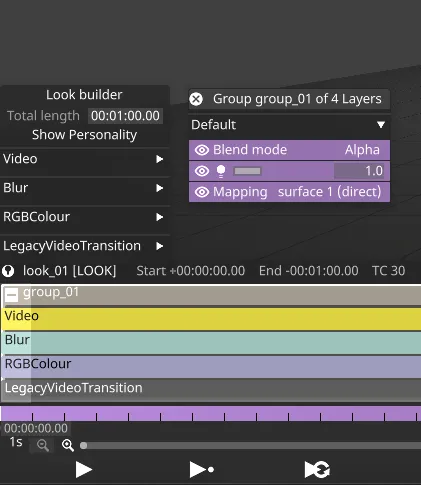
The naming widget is skipped in this flow, so each entry takes the default names: the field’s name, grouped under its Layer’s name. Rename entries in the Look Builder afterwards if you need to.
Playback
Section titled “Playback”A Transport Manager can’t play a Look directly. To play one, add a Look Layer to a Track and select the Look in the Look Layer editor. The Look’s exposed fields appear there, ready to set and keyframe like any other Layer’s, or to patch to Sockpuppet.
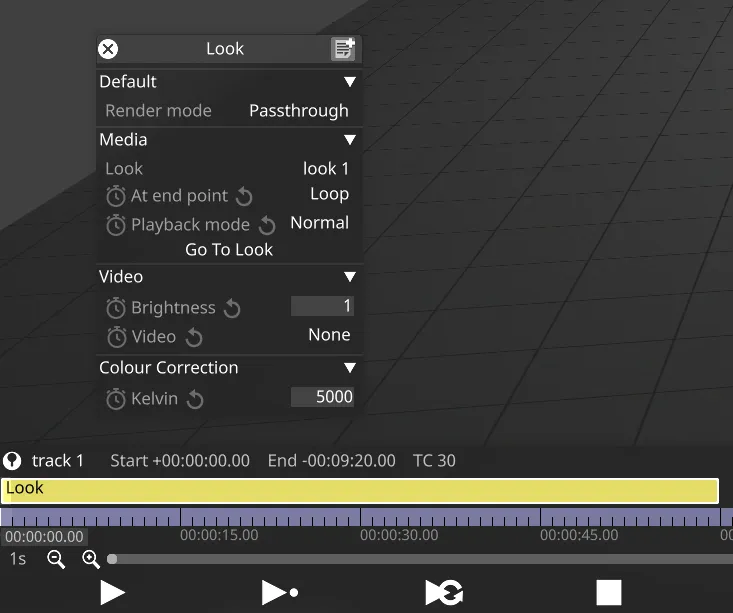
The Playback mode, At end point and Render mode settings are on the Look Layer. See the Look Layer page for what each one does.
Limitations
Section titled “Limitations”Supported and unsupported layers
Section titled “Supported and unsupported layers”Most layer types can be used in a Look. The tables below list which are supported and which aren’t.
Supported
Section titled “Supported”| Category | Supported in Looks |
|---|---|
| Content | Audio, Video, VideoTrigger, Web |
| Effect | Blur, ChannelRouter, ColourAdjust, Compose, EdgeFilter, Fade, FilmicGrain, Kaleidoscope, LUT, MotionBlur, Noise, Pixelate, PixelMap, Scroll, SpinBitmap, Trigger, UVLookup |
| Generative | Bugs, Chevron, Colour, Gradient, Notch, Radar, RGBColour, Scan, Strobe, Pong, Text |
| Legacy | Bitmap, VideoTransition |
Not supported
Section titled “Not supported”| Category | Not supported in Looks |
|---|---|
| Content | 2.5D, Depth Video, RenderStream, RenderStream Local, StageRender, VirtualLineup |
| Control | All Control layers |
| Effect | CDL |
| Generative | Readout, TestPattern, TrackingMarker |
| Legacy | LegacyVideo |
Track features
Section titled “Track features”A Look is always a single section, with no section breaks. Cues, Tags and Notes can’t be added inside a Look either. A Look is played on a Track by a Look Layer, and that Track’s timeline runs it. Add Cues, Tags, Notes and section breaks to that Track instead, anywhere along the Look Layer. The Look Layer’s playback mode sets whether jumping to a Cue partway through plays the Look from the matching point.
Known issues
Section titled “Known issues”- DSOF-34258 - A Look Layer in Normal playback mode does not start its Look from the beginning. If the Track was already playing before it reached the Look Layer, the Look’s content comes in partway through, by roughly the time played beforehand. Set the Look Layer’s Playback mode to Locked to start the Look from its beginning every time.
- DSOF-34253 - A layer that starts partway into a Look, with its media assigned through an exposed field, starts that media late by the layer’s offset into the Look. With At end point set to Pause and media shorter than the offset, the layer shows only its last frame. Start the layer at the beginning of the Look, or set its media directly on the layer instead of through an exposed field.
Disconnected sequences
Section titled “Disconnected sequences”When you unexpose a field, or switch a Look Layer to a different Look, the keyframes recorded on the Look Layer for the old fields stop driving anything. Designer keeps them on the Look Layer as disconnected sequences, so re-exposing the field or switching back restores them, and you can iterate on a Look’s Personality without losing keyframes.
Heavy iteration leaves a growing number of disconnected sequences behind. A Look Layer with a large number of them can make editing the timeline around it less responsive: inserting time, moving or duplicating the Look Layer, or jumping the playhead in and out of it. If this affects your project, contact Support.