

Getting Started with MyDisguise
Getting started with MyDisguise covers creating your account, setting up an Organisation, purchasing and managing your subscriptions.
Create an account
Section titled “Create an account”- Navigate to my.disguise.cloud.
- Click Sign up.
- Enter your email address and choose a password.
To sign up with a Google account instead, click Continue with Google and confirm your Google credentials.
Log in to an existing account
Section titled “Log in to an existing account”If you already have a Disguise Cloud account, there is nothing to do. Migration is automatic and starts the first time you sign in. See what happens to your Disguise Cloud account.
- Navigate to my.disguise.cloud.
- Enter your credentials, or click Continue with Google and use your Google credentials.
The Legacy account migration screen appears while your Organisations are moved across. Each Organisation shows its own status, and the whole thing usually takes a minute or two.
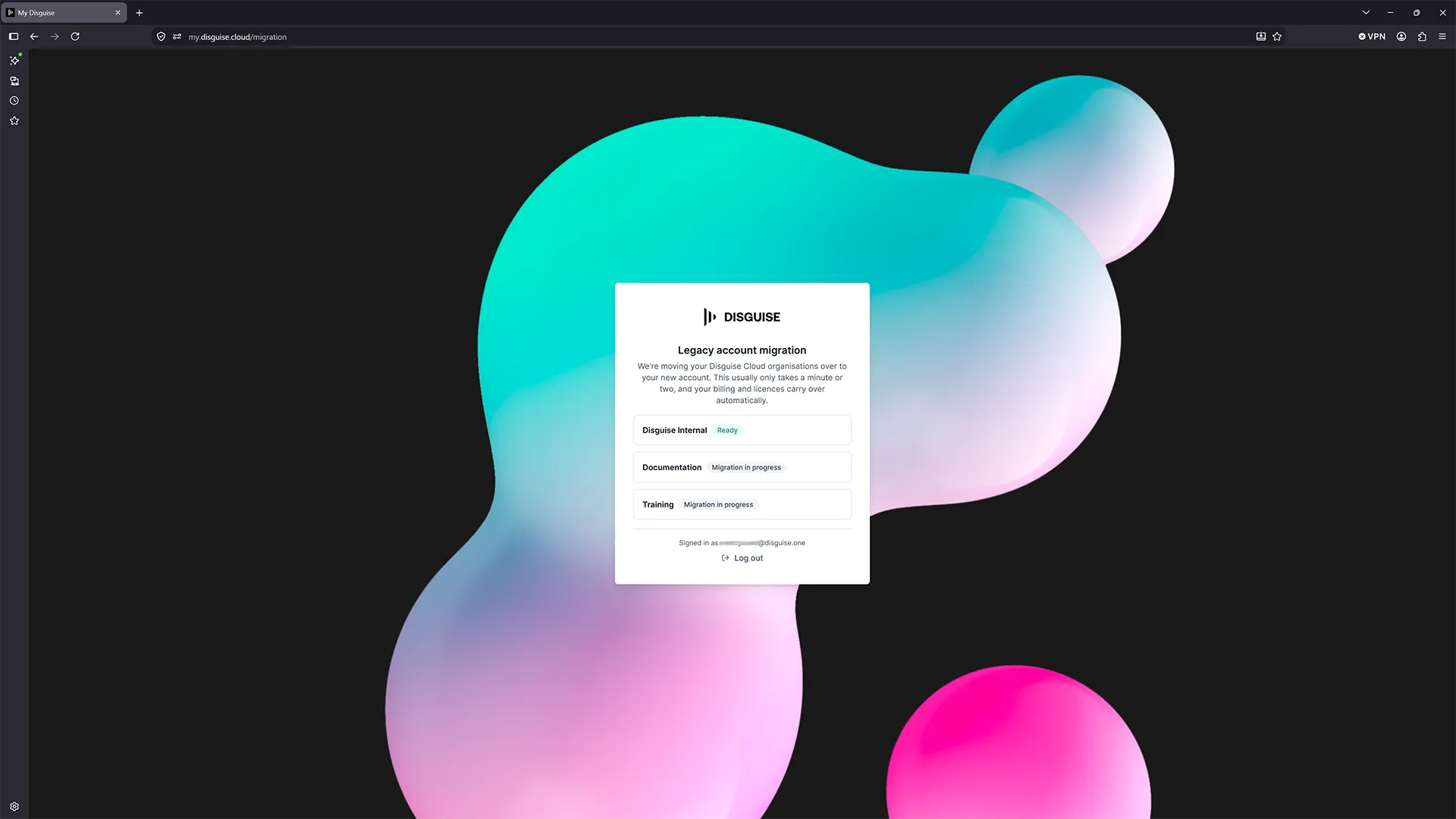
Set up your account
Section titled “Set up your account”The first time you sign in, MyDisguise asks you to join your team before anything else. You will see any Organisation whose email domain matches your own, as long as that Organisation has chosen to be discoverable, and you can either join it or request to join it. If your team is not listed, you can create your own Organisation from the same screen.
Your account is personal to you. Whether a setup is personal or business is decided on the Organisation rather than on the account, and it is set when the Organisation is created.
Once you belong to an Organisation you land on the Dashboard, which summarises your subscriptions and licenses, your Organisation’s members and your most recent activity.
See Managing MyDisguise Organisations for joining and creating in full.
View and update your Account
Section titled “View and update your Account”Click your avatar, top right, to open the profile menu, then click your avatar and first name to go to your Account details to view or update your personal information: your photo, your first and last name and your email address, and to set your Notification Preferences. These details belong to your MyDisguise account and do not change across any Organisation that you are a member of.
Personal Information is where you change your first and last name, and your photo, which takes a JPG, PNG or WebP up to 5MB. Your email address is the one you signed up with and is shown read-only. Select Save changes when you are done.
Notification Preferences controls what Disguise emails you, with two switches. Notifications covers updates about your account and licenses. Marketing emails covers product news, offers and announcements.
Request your data or delete your account
Section titled “Request your data or delete your account”Request Data gives you a copy of your personal data. Select Download My Data and Disguise emails you a JSON file with your account, Organisations, subscriptions, licenses and invitations.
Request Account Deletion asks Disguise to delete your account, removing all your personal information from the system. Select Request Deletion to start it.
See MyDisguise Overview for what else lives in MyDisguise.
Related links
Section titled “Related links”- MyDisguise Overview: What MyDisguise covers, how it replaces Disguise Cloud, and what happens to your existing account.
- Managing MyDisguise Organisations: Create an Organisation and change its settings.
- Managing Your Team: Invite people, assign roles and manage access.
- MyDisguise FAQs: Common questions about accounts, Organisations and migration.